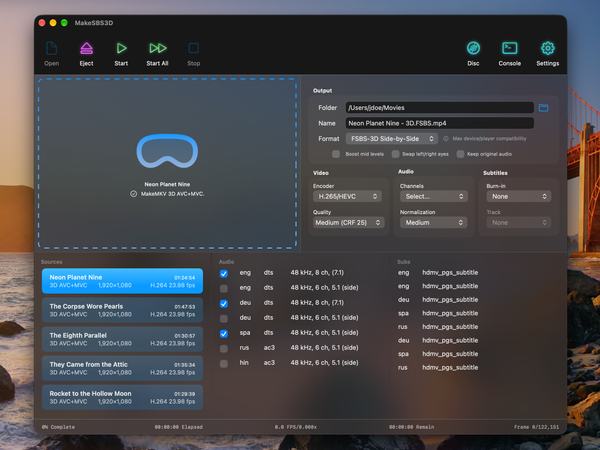
Insert disc, pick SBS or spatial, drag a slider, hit play
An open reply to Sean Hollister, who placed an order on Bluesky

Sean Hollister wrote in The Verge that 3D movies are finally worth watching, and he is right. His case, in his words:
Almost every 3D technology cuts something you care about in half, whether it’s resolution (see also: Nintendo 3DS) or the refresh rate and flicker you get with active shutter glasses.
Video glasses and headsets fix that. Of his Xreal glasses he writes: “With proper content, you get a full 1080p view for each eye.”
Getting that proper content is the hacky part, and his own routine shows it:
I pop them into an old external USB Blu-ray reader, then let MakeMKV spend half an hour per movie to produce a 30-to-40GB multi-view (MVC) file. I pop that into BD3D2MK3D for another 50 minutes per movie to spit out a high-quality 3840 x 1080 “Full-SBS” file that’s half the size of the MVC.
“It’s a lot of friction,” he adds, “but for me, the payoff is worth it.” When I showed Sean an early build of MakeSBS3D on Bluesky, he answered with what reads a lot like an order:
Neat! Have you thought of making it a one-click? There's still a bunch of friction in the MakeMKV part of the workflow and the fact you'll have leftover gigantic files after, I'd love to point readers at a "insert disc, pick SBS MP4 or spatial, drag a quality/filesize slider, hit play"
— Sean Hollister (@seanhollister.bsky.social) October 6, 2026
Fair. So, Sean, here is your order, line by line.
Insert disc
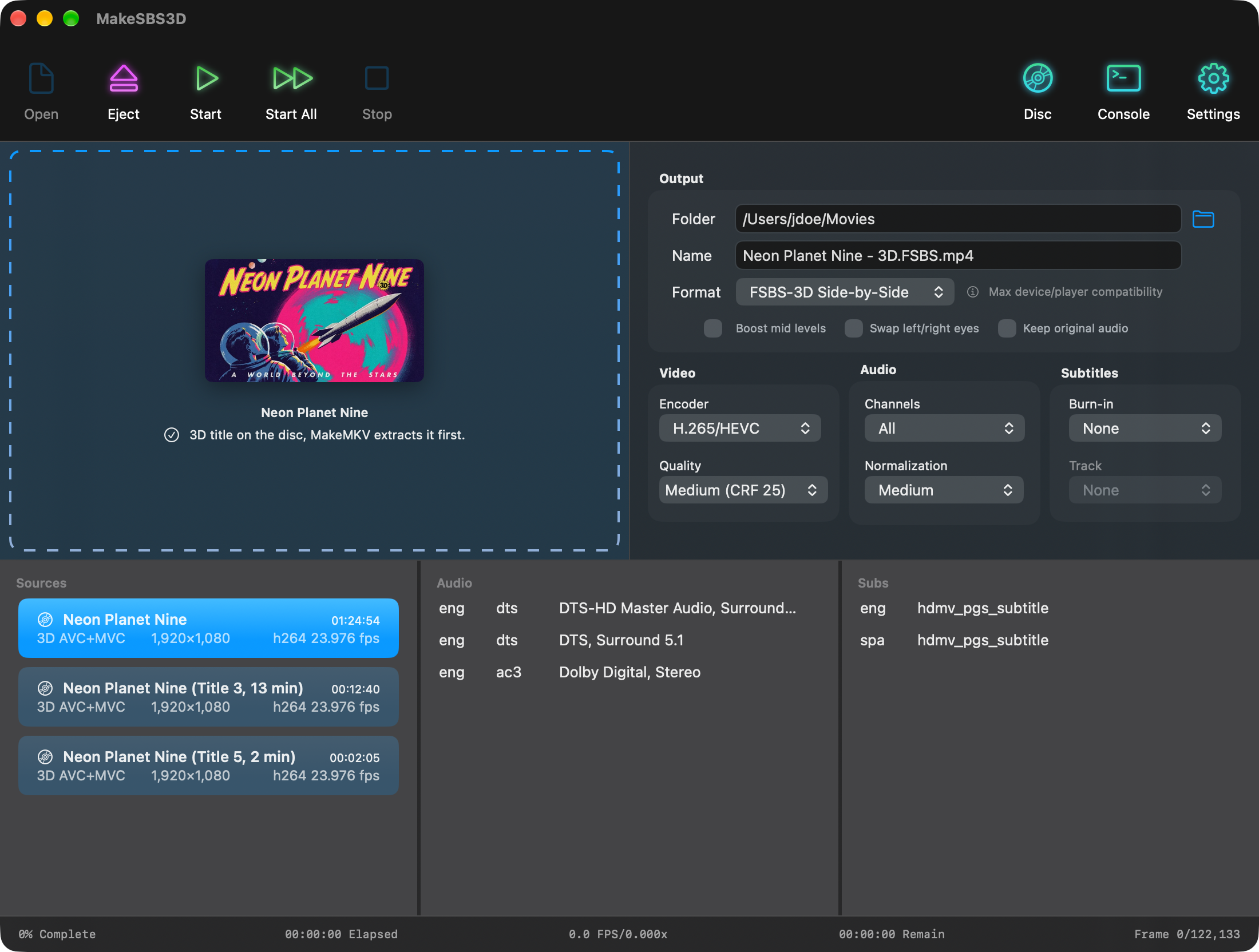
With MakeMKV installed, a Disc button shows up in the toolbar. Insert the disc and click it. MakeSBS3D lists every title with a 3D view, with the name and cover art the disc carries, and selects the main movie.
Pick SBS MP4 or spatial
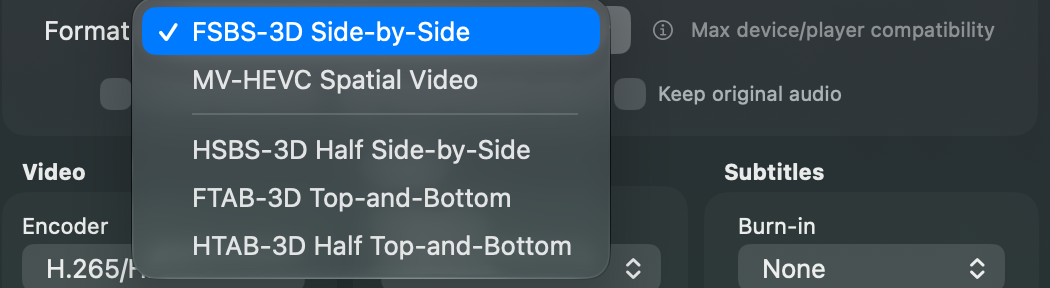
The Format menu: FSBS-3D Side-by-Side writes an MP4 with both views at full width, the same 3840 × 1080 as BD3D2MK3D’s Full-SBS, for SKYBOX, Bigscreen, and the other players on Quest, Vision Pro, and the rest, or VLC and a pair of Xreal glasses. MV-HEVC Spatial Video writes Apple’s own 3D format, which Vision Pro plays natively.
Since version 1.2.0 there are also half side-by-side and top-and-bottom formats for 3D TVs. Yes, those cut something in half. Some old TVs persist... 🤷
Drag a quality/filesize slider
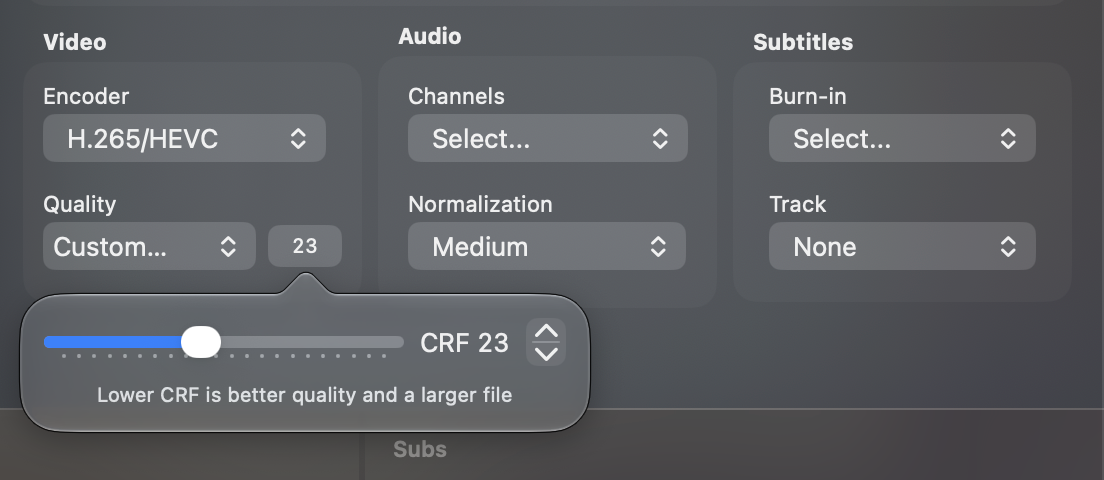
The Quality menu has six presets, from Maximum to Low, and Custom… opens the aforementioned slider.
Hit play
Click Start. MakeMKV extracts the title into a hidden work folder beside the output, the conversion takes over, and the disc ejects when it is done. Start All converts every title on the list.
…and no leftover gigantic files
The 30-to-40GB MKV that MakeMKV extracts goes with the other temporary files when the movie is done. If you want to keep it, turn on Keep the MKV extracted from the disc under Settings → Defaults → Disc.
MakeMKV is still the part that reads the disc, so you install it once, and it keeps its own license terms. Everything after that is the four steps above.
If you have 3D Blu-rays and a Mac, I hope you will try it on your own discs: the trial converts the first five minutes of each movie, and the full version is US$29. The how-to post and the manual cover the rest.
Sean, your order is ready. 🍿